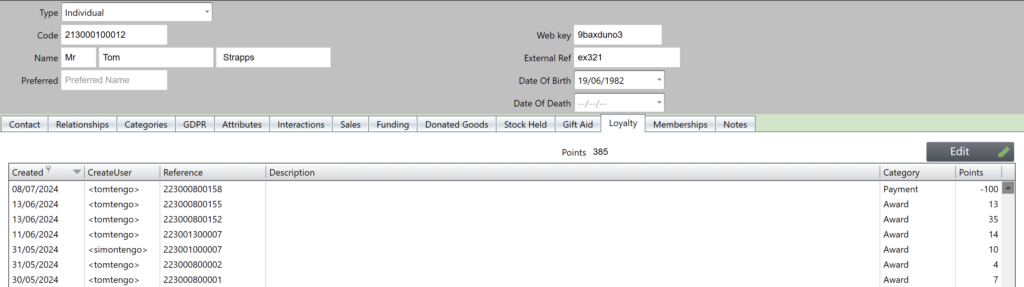
TengoPOS has an in-built loyalty scheme system, whereby your customers can earn points to spend in store on eligible purchases.
Scheme activation
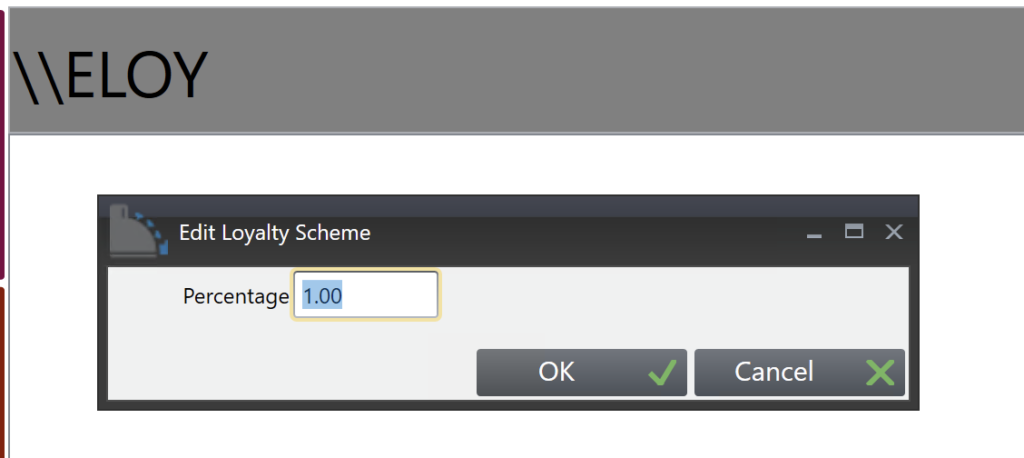
To activate a customer loyalty scheme, in tengoPOS, type in \\ELOY, and press enter. The screen below will appear, this is where you set the percentage (1% = 1 point per £):
Customer sign-up
To create loyalty cards, you can either get pre-printed cards with sequential barcodes (EAN12 plus check digit, 345 prefix, this will be the info a card printing company would need), or you can get tengoPOS to generate barcodes and print labels with the name of the person and stick these to cards of any sort. The reference identifies the individual, so existing donor or membership cards will also work, they all use the same reference. The reference is the ‘Account Code’, so to assign a pre-printed card to a donor, find or add them (\\FCUS or appropriate donor/customer lookup button on your till, or under CRM on tengoCloud) and set the ‘Code’ as shown below to be the one on the card, by scanning or typing it in. To generate a code and label, press ‘Print label’.
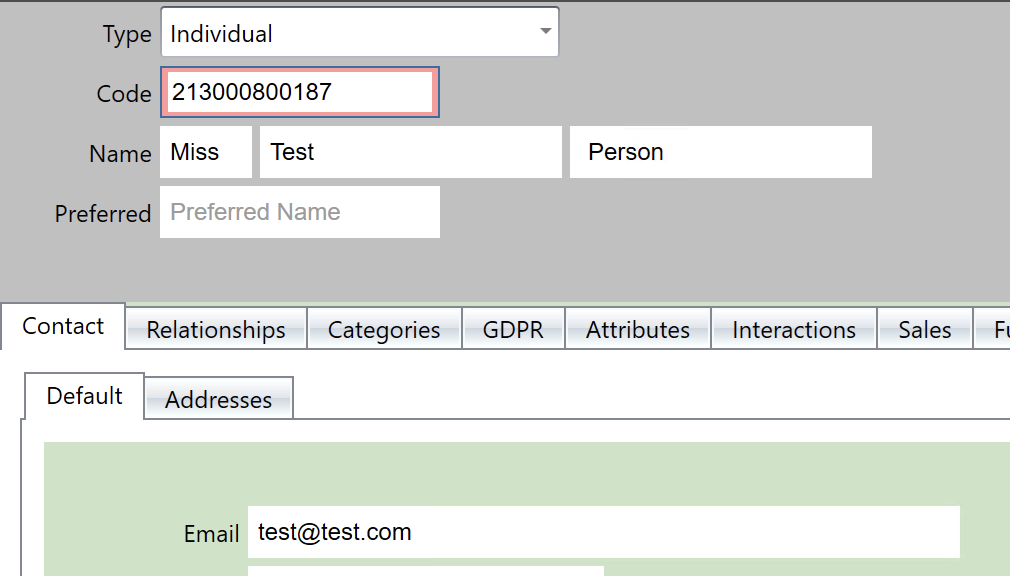
You may choose to create a button for ‘loyalty sign up’ with prompts/queries as approporaite.
Earning points
For customers to earn points, you must scan their card when making a sale. You can do this at any time, when you do so, their name appears at the top of the transaction window (as shown in the redeeming section below). Complete transactions as normal, and their points will acrue.
Redeeming/spending points
If you don’t already have a tender button as shown below, you need to add a button (see guide here) with an action of TLOY ‘Tender Loyalty’.
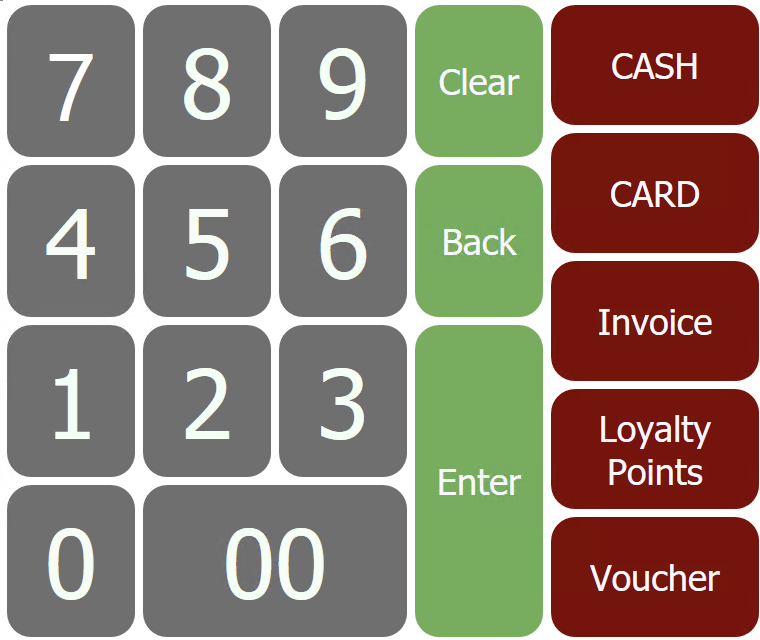
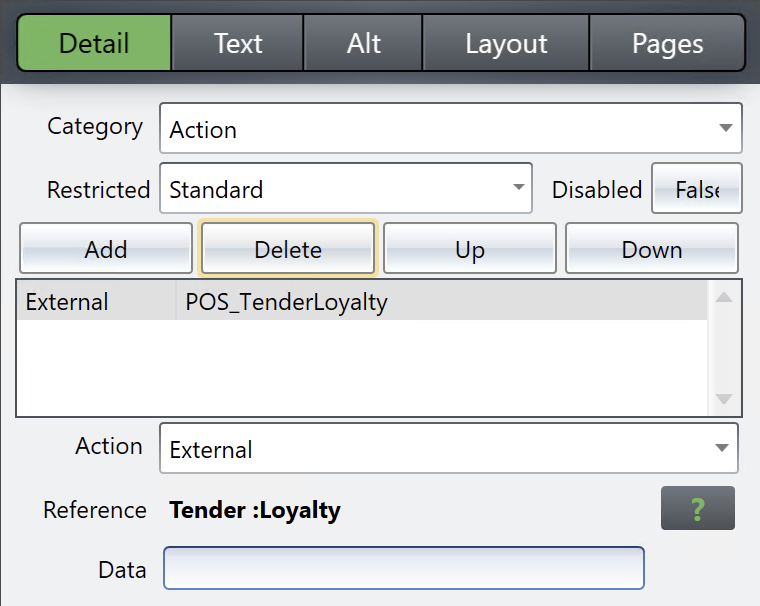
Once you have the button, to use points on a transaction, and you have the list of items you wish to sell, press the loyalty button, scan their card, and you’ll see how many points they have. Enter the number of points they wish to use, and click OK.
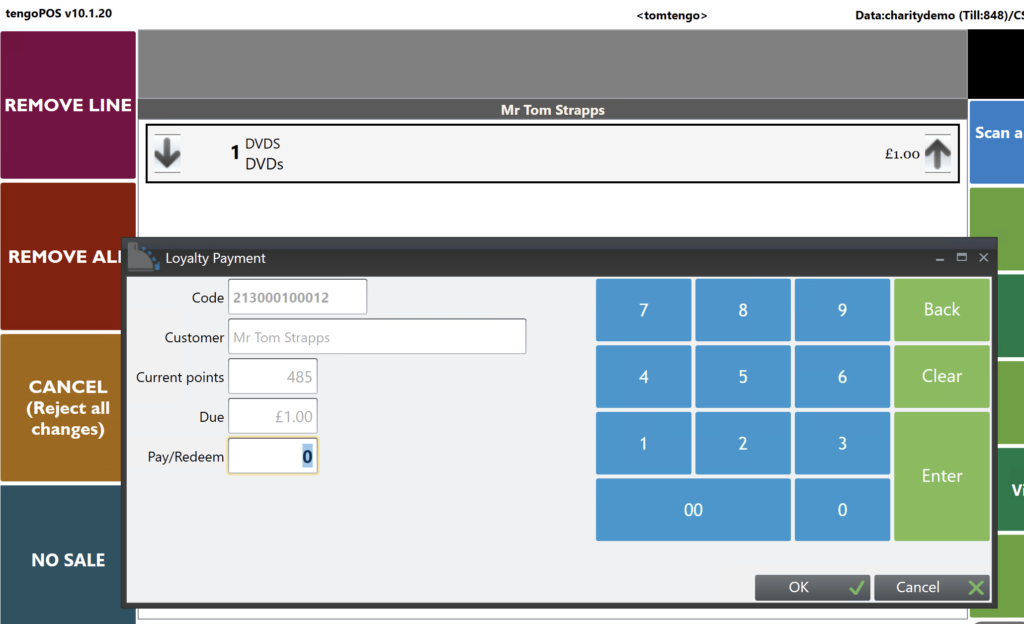
If there is anything left to pay, you can take payment using a different method, in the usual way.
Blocking loyalty
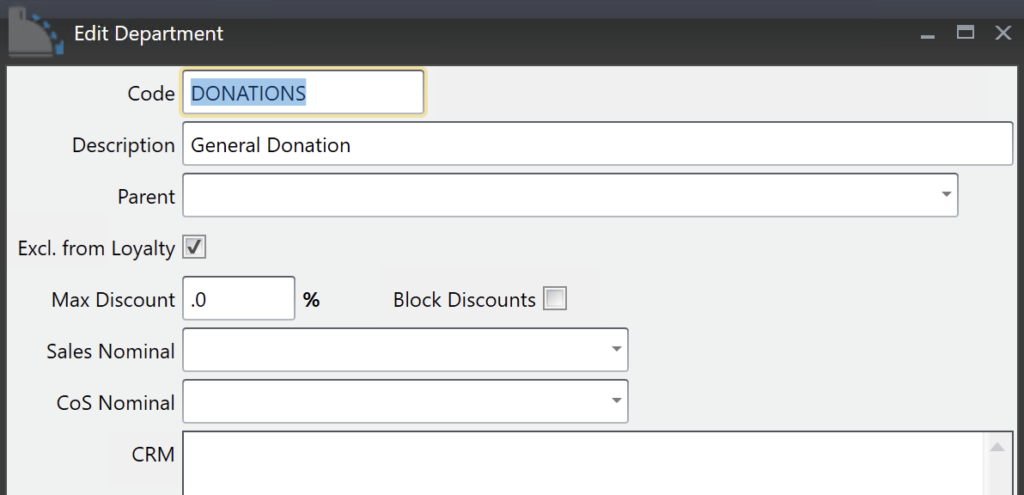
If you want to block certain products or departments, there is a Excl. from Loyalty tickbox as shown below. This means when selling products with that tick against them, no points are earned.
Loyalty points check, adjustment, & history
If you don’t have a ‘Loyalty points check’ button, the relevant action is \\VLOY. On pressing the button or typing that in and pressing enter, you can scan a card to check the points balance, and also make adjustments if required.
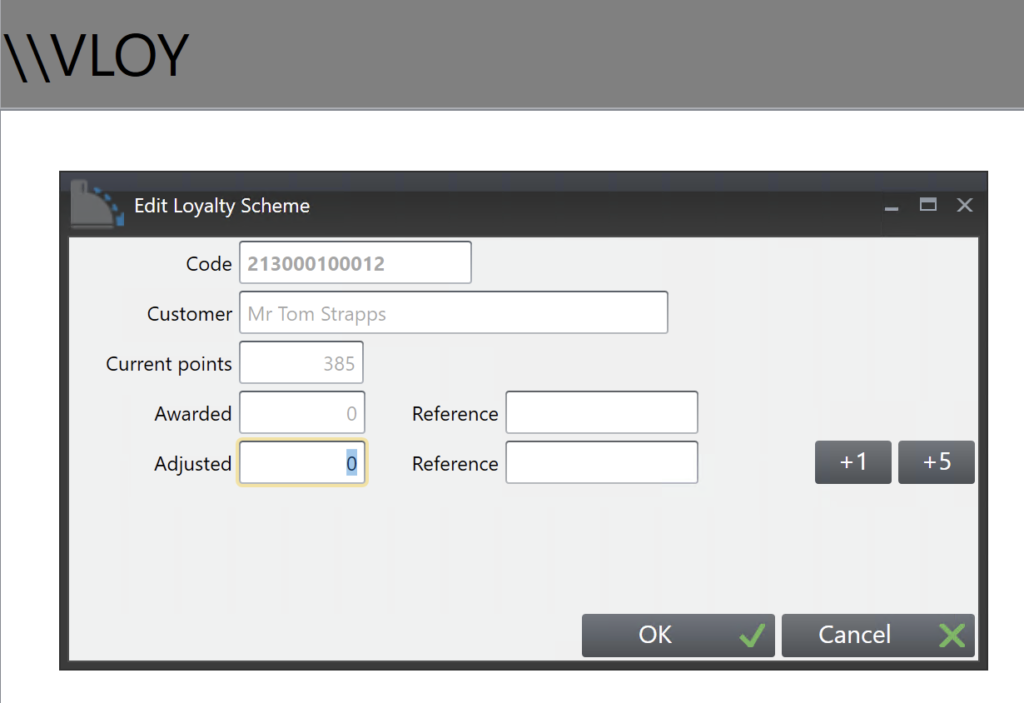
You can also adjust the points and see history of points awards, along with details of what a customer has purchased, against their customer record (\\FCUS or relevant button)