
To configure special offers on products such as buy one get one free, percentage discount, or free add on product, type \\spec and hit enter.
You will be presented with this screen. If this is your first special offer, press add, and give your offer a name in the Title box. If you already have some offers they will be listed and you will press Add+ bottom left, to add a new one. If you’re editting an existing one, select it from the list on the left.

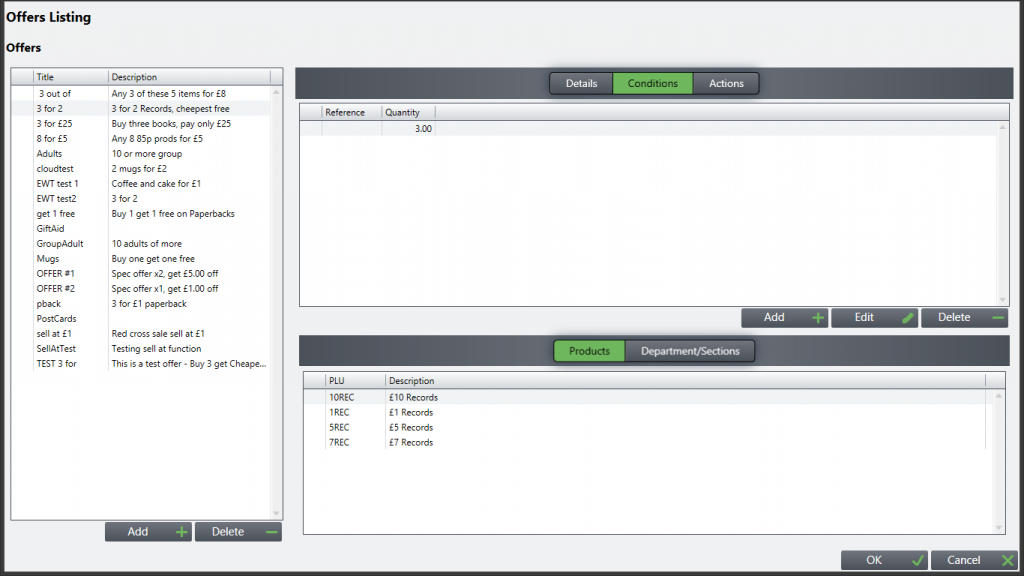
Then click on the Conditions tab at the top, > then the Add+ button, > then the Add+ button on the next screen. This gives you the Edit Condition screen and product look up. Under Quantity, enter the number of products sold to trigger the offer. So for this example, Buy one get one free, the number is 2. If it were a “3 for 2” offer, the number would be 3. Then locate your product/s by typing in part of the PLU or scanning a bar code into the Search box. Press OK. Example below it is buy one get one free just on Paperback books, so the only product located is that one.

Finally on the actions tab, press Add+ to add one or more actions to take once the correct number of products are being sold. In this case we have selected Cheapest Free. PLEASE NOTE: The ‘Product’ box here is to set a discount class product, which is used for reporting purposes. Do not enter the PLU of any product that forms part of the special offer in here. If you do not know the correct PLU, you will need to find the product set as a class of ‘General Discount’ from \\prod or ask the person who manages products for your organisation. If you need to set up a product with the class of ‘General Discount’ please follow the adding products guide.
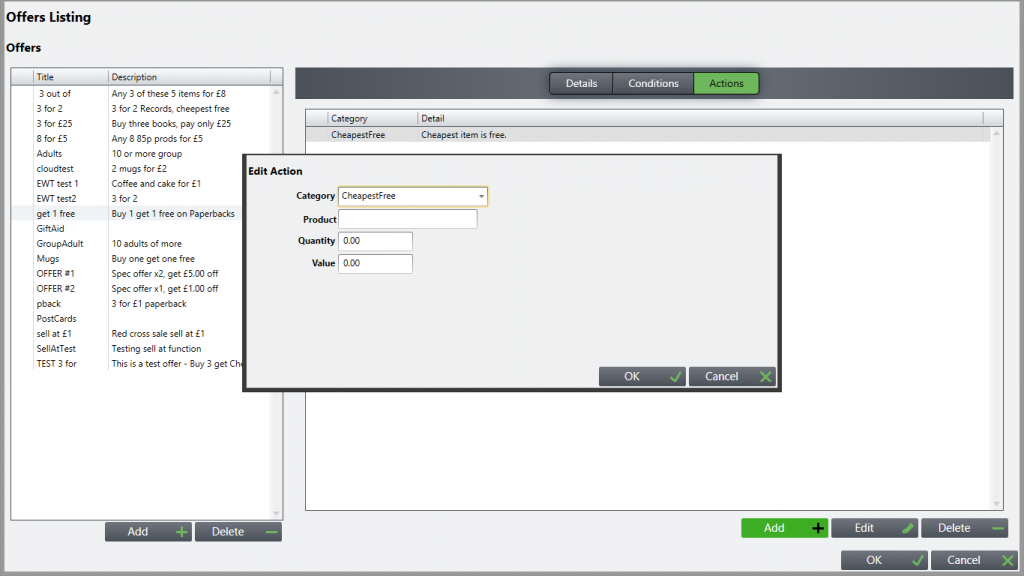
If say you had an item sold for £5, and you wanted to sell 2 for £8, in the Edit Action box you would chose Discount Value from the Category drop-down, and type 2.00 in the Value box. Then when 2 of the chosen products are sold £2 will be deducted.

You can have a number of products included in the offer. Below we sell Records at various fixed prices. This is how the Conditions page would look if it were 3 for 2, and the Action page would say “Cheapest Free”
Exit the software and restart it so that the till updates with the details, and if you enter any qualifying products in the right quantities, you’ll see that your offer automatically applies:
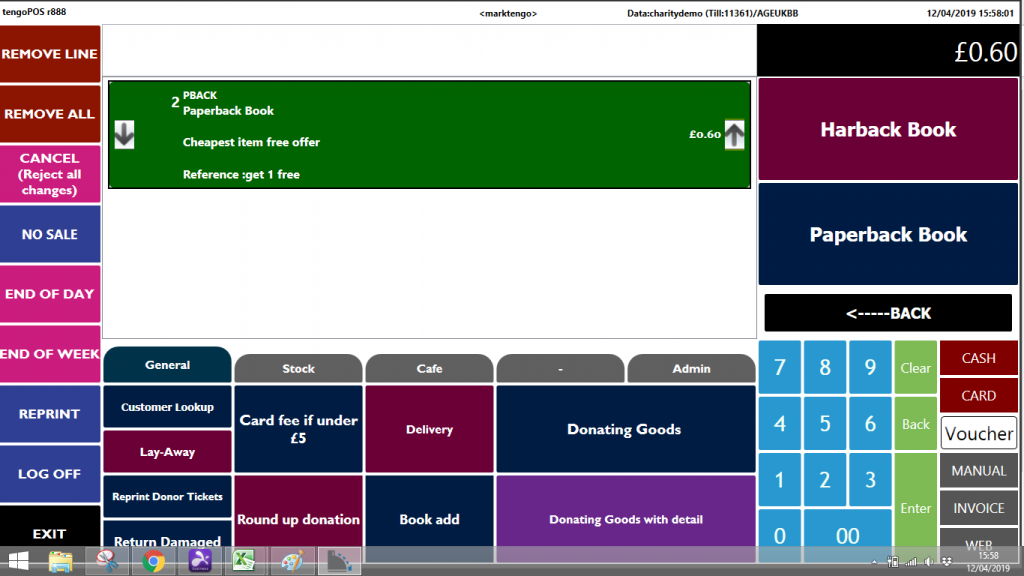
This is a basic guide, as there are many options. Try it, you can enter the products to be sold and check the offer works without actually pressing the Cash button.
PLEASE NOTE: If you would like the special offer to run only at specific sites, you can add those as part of the condition, using the sites tab to the right of the department and product tabs. If you don’t specify a site, the offer will run across all sites and all tills. For many offers, you MUST have the relevant products set to ‘product sold as individual‘, as the calculations can go wrong if you say have 4 of the same product in one line.