
Direct integrations with various accounts packages/systems are available on request as a costed extra. However, most people prefer to simply import a file which can be pre-formatted for your accounts package, and exported directly from tengoCloud.
Pre-configuration
For exporting in to an accounts package, you will likely need to configure nominal codes, and add those codings to products you sell (guide on configuration here), or the departments they reside in (guide on configuration here).
Editting the list of nominal codes
To edit the list of nominal codes, in tengoPOS, type in \\LNOM and press enter. You will have a list similar to the one below, with add/edit/delete and OK. You need to list all the nominal codings you wish to use, for importing in to your accounts system. Please note, for some accounts packages, imports only work if they contain ALL nominal codes, so you may have to enter all codes including those not necessarily to be used on products being sold through our system.

Assigning nominal codes to departments
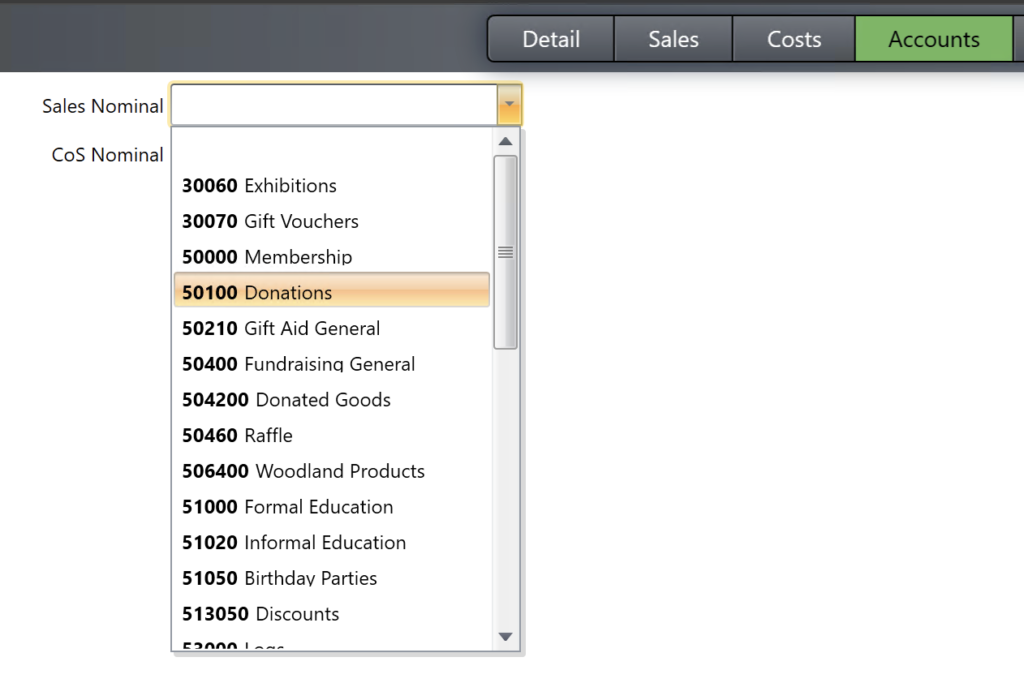
You can assign codes to departments, or products. If assigning to a department, all products within that department will go against the nominal code assigned to the deparment (unless overriden at the product level, below). To assign codes to departments, in tengoPOS, type \\DEPT and press enter, select the relevant department, click edit, and set the ‘Sales Nominal’ code on the drop-down as shown below.

Assigning nominal codes to products
You can also add nominals directly to individual products. If you do this, it overrides anything set at the department level. In tengoPOS, type \\PROD and press enter. Find the relevant product, click edit, and click the ‘Accounts’ tab. Then set the relevant nominal code on the drop-down as shown below.
Reporting/exporting/importing
Now the nominals have been set, and you sell the products, the figures are posted in our system against the relevant nominal codings. In tengoCloud, there are 2 primary reports used for exporting (and many reports contain the nominal if you have this set, see here).
Nominal Summary report/export
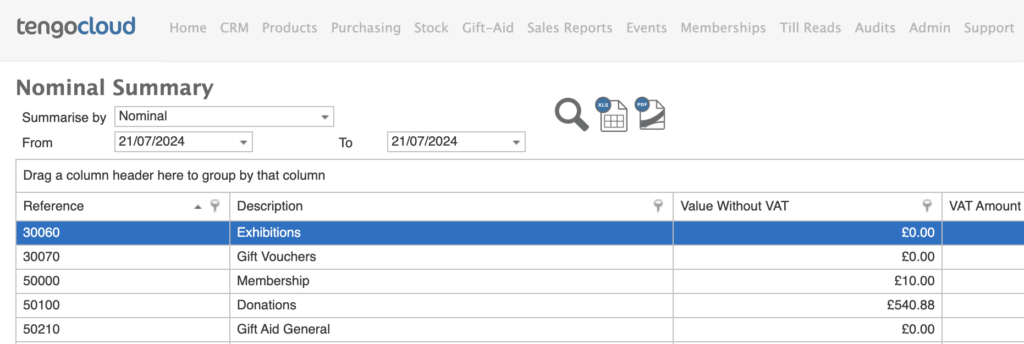
Some accounts packages require/can use a single summary of the total amount of sales for each nominal code, for a given date range. That can be found under Sales Reports > Nominal Summary, and is shown below. Select the required options, and hit the magnifying glass to run the report, to export it, click the ‘xls’ icon.
Sales Nominals report/export
Some finance systems require a line by line of every item sold, against the particular nominal code. This report can be found under Sales Reports > Sales Nominals, and is shown below. Select the required options, and hit the magnifying glass to run the report, to export it, click the ‘xls’ icon.
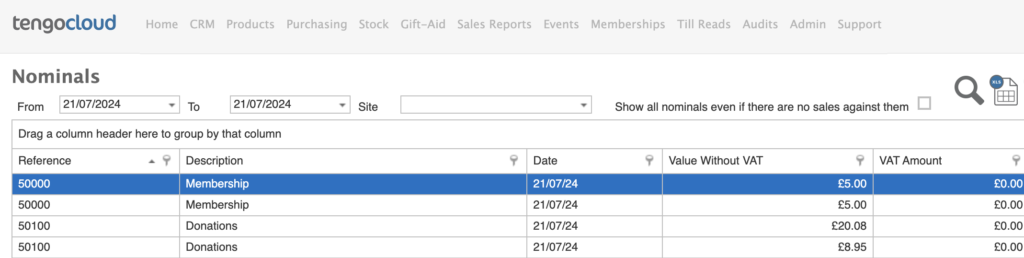
PLEASE NOTE: Some accounts software packages require all nominals to be shown, even if there are no sales against them – the tick box shown above in the sales nominals report facilitates that when running the report.