
As a general rule of thumb, please don’t change settings or perform actions if you don’t know what you are doing. This article covers some of the possbile things that can happen / screens you can get in to that you don’t want to be in, and how to get out of them.
The button editor (edit mode)
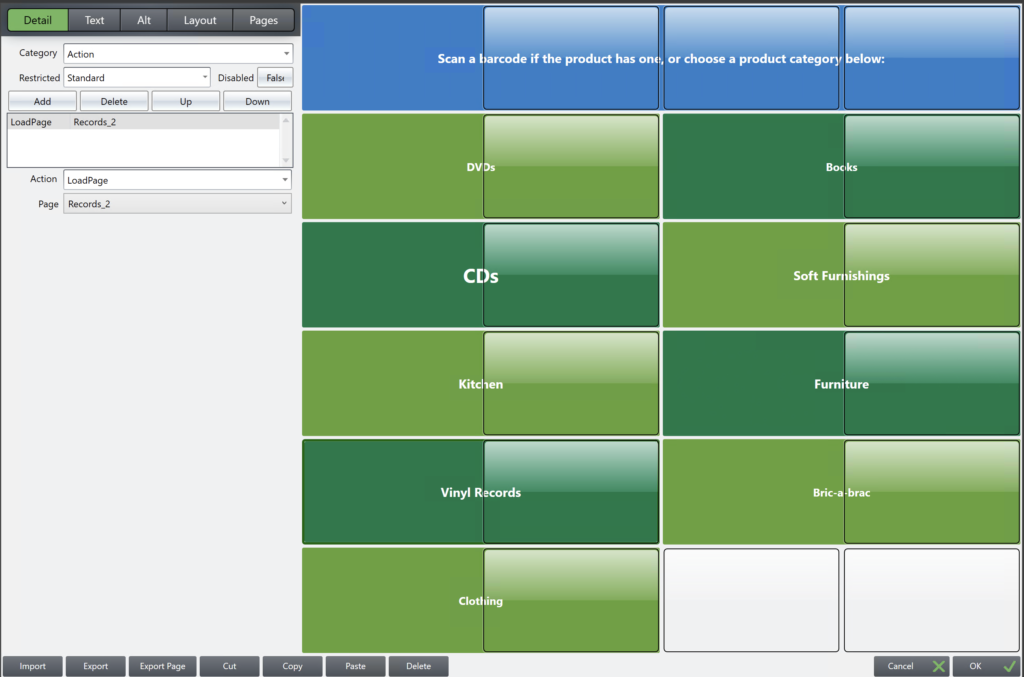
As per the guide on editting buttons here, you can get in to the button editting mode by either holding down the control (ctrl) key and pressing enter, by ‘right-clicking’ on a button if you’re using a mouse, or by holding your finger down on the button for a couple of seconds if you’re using a touch-screen device. If you inadvertantly load the button editor which is shown below, simply press ‘cancel’ and you’ll be taken back to the main screen.
Utility/wrong layout modes (zoomed in screen)
If you see a screen similar to the one below, where you only see your ‘middle’ section of buttons, ‘zoomed’ in on, that means you have set your till’s layout code to ‘Utility’ mode, which is designed for non-trading devices.
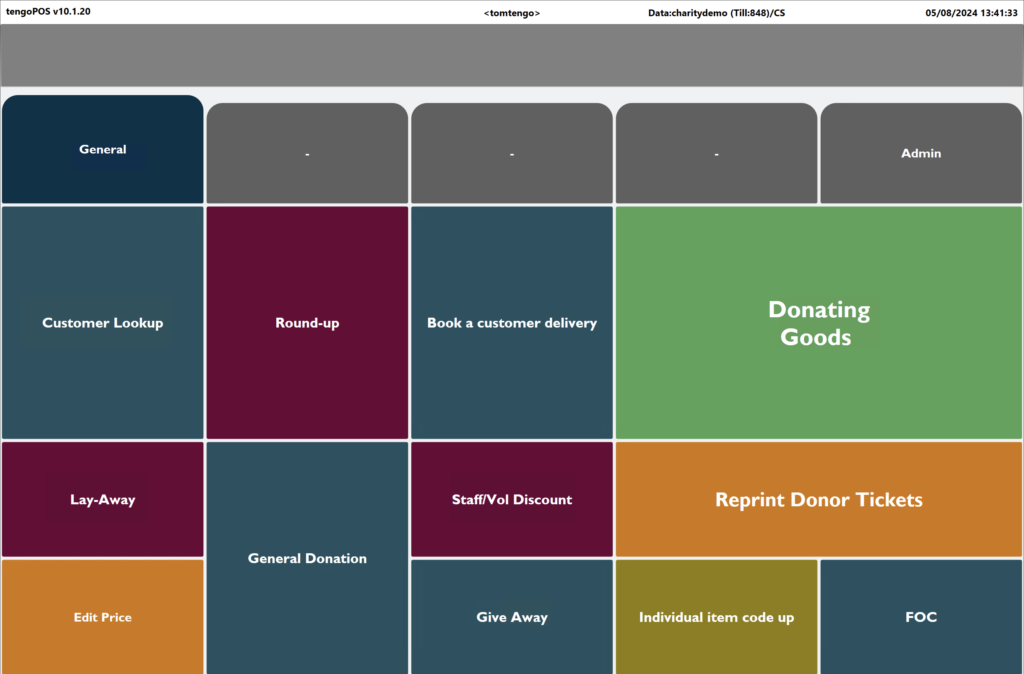
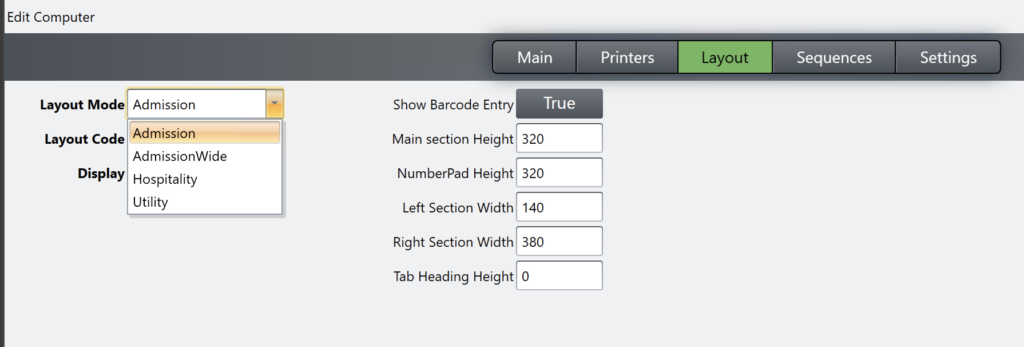
To change back, type in \\TILL and press enter, and you’ll get to the settings page. Click on the layout tab, and you’ll see the ‘Layout Mode’ drop-down. Most clients use ‘Admission’ mode, so if you don’t remember what mode you usually use, that would be the first one to try. If it’s not right, try the other modes.
Training mode
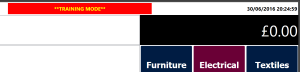
If you see the below flashing on your screen, you’re in training mode. Typing \\TRMD and pressing enter will take you out of it, but if in doubt, rebooting the machine will also take you out of it.
Other screens
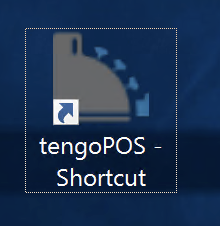
Othe screens you may see are the Windows login screen, if you’ve accidentally locked the machine, or the windows desktop where you see the tengoPOS and other icons (shown below). The windows login screen may require a password which is usually ‘tengo’, but there’s a full guide here on that. If you’ve just switched your machine on, please wait a while as tengoPOS should load automatically, you will see the desktop until that happens. If you see that screen for more than 2 minutes, you can start tengoPOS by double clicking or tapping the icon. If you get a message saying it’s already running (another instance of tengopos is already running), reboot the machine.
If all of the above fails, as with all issues, rebooting your machine will resolve pretty much anything and bring you back to the tengoPOS log on screen.
Related search terms: Till huge, stuck in training mode, till zoomed in, page function, zoom out, another instance of tengo, till zoomed, till load page, unexpected screen, different screen, other look of screen, blue screen, big buttons, oversized