
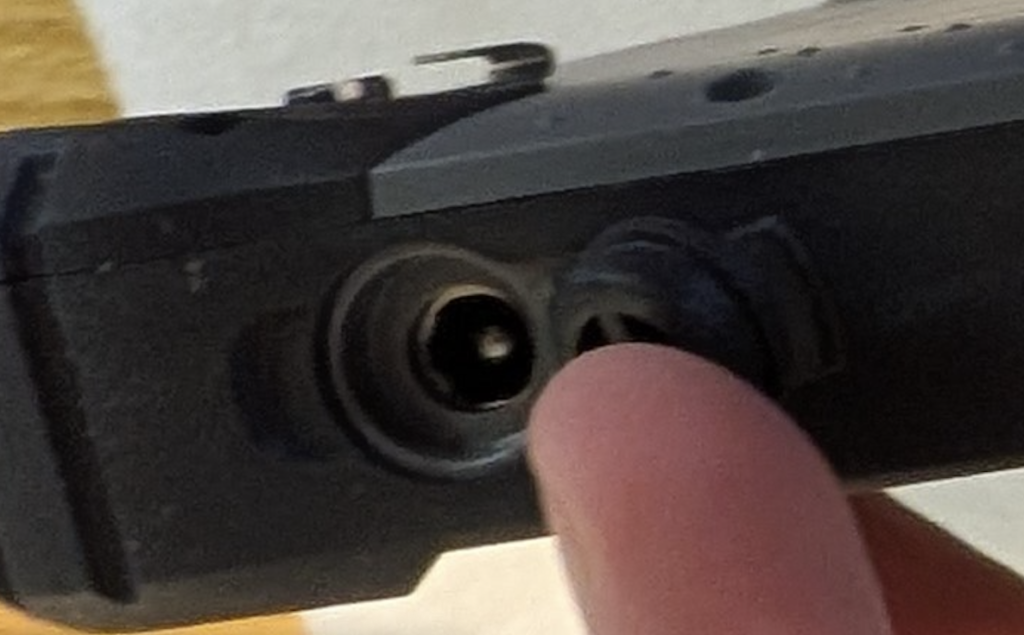
Carefully remove all the packaging and connect the charger (please note, on the tablet itself, the port(s) for the charger/power cable and other devices are behind rubber stoppers that pull out, to protect them, as shown below – or if using a docking station, connect the power to it and slot the tablet in to it).
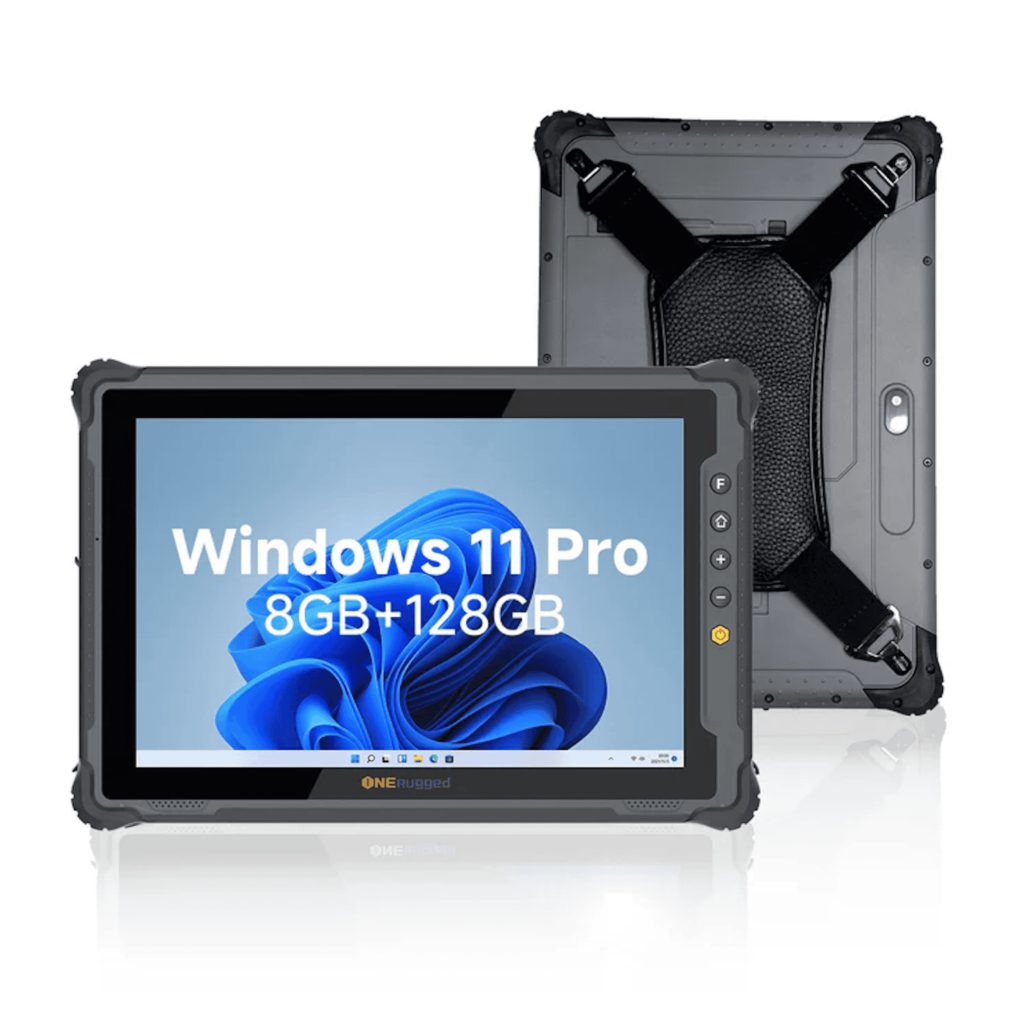
Switch it on, the power button is the yellow hexagon to the right of the screen shown below.
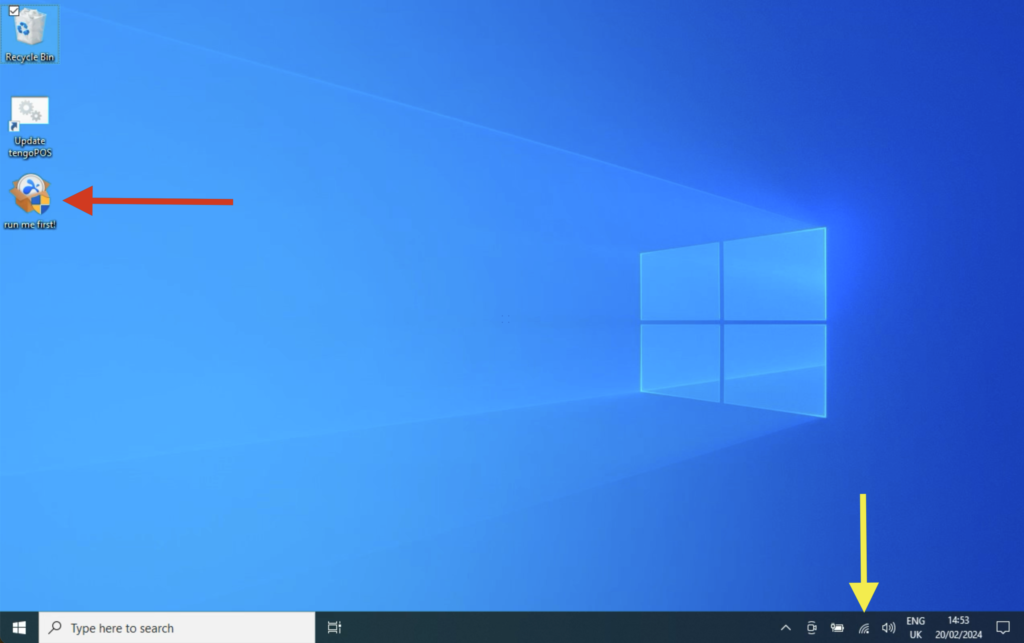
When the machine boots up, the Windows password is tengo, if it asks you for it. You will then have a screen similar to that shown below. Connect to a WiFi network (WiFi icon shown with the yellow arrow below). Double tap the ‘run me first’ icon (shown with the red arrow) identified with the red arrow below, and follow the instructions to allow us to connect and set up your machine.
Answer Yes to the “Do you want this app to make changes”, and when Splashtop Streamer has installed, answer ‘Confirm’ in the Tengo Support box. Splashtop Streamer will now be open on screen, the tabs on the left read Status, Settings, Security etc down the page. Make a note of the Computer Name on the top line under Status, so you can quote this temporary name later. Click on Security and Blob the “No additional password” line. Close the program using the X top right.
Contact the person by email who arranged the shipment for you, to confirm the steps above have been completed ahead of your install time/date. Please ensure before the appointed install time that all devices (printers etc.) that you wish to use, are connected and powered on, and have paper or labels in them correctly as appropriate.