
If you’re not able to press/tap buttons in tengoPOS, or they’re not responding, there are 3 possible causes:
1. There is another window open behind – sometimes if you’re on a pop-up, but click off it accidentally, it’s still there and is the active window, awaiting a response. Hold down the ‘Alt’ key on your keyboard, and press tab, this will show you open windows and keep pressing tab until you get to the window that is waiting a reponse (example shown below on pressing alt > tab, the price box is waiting for a price to be entered).
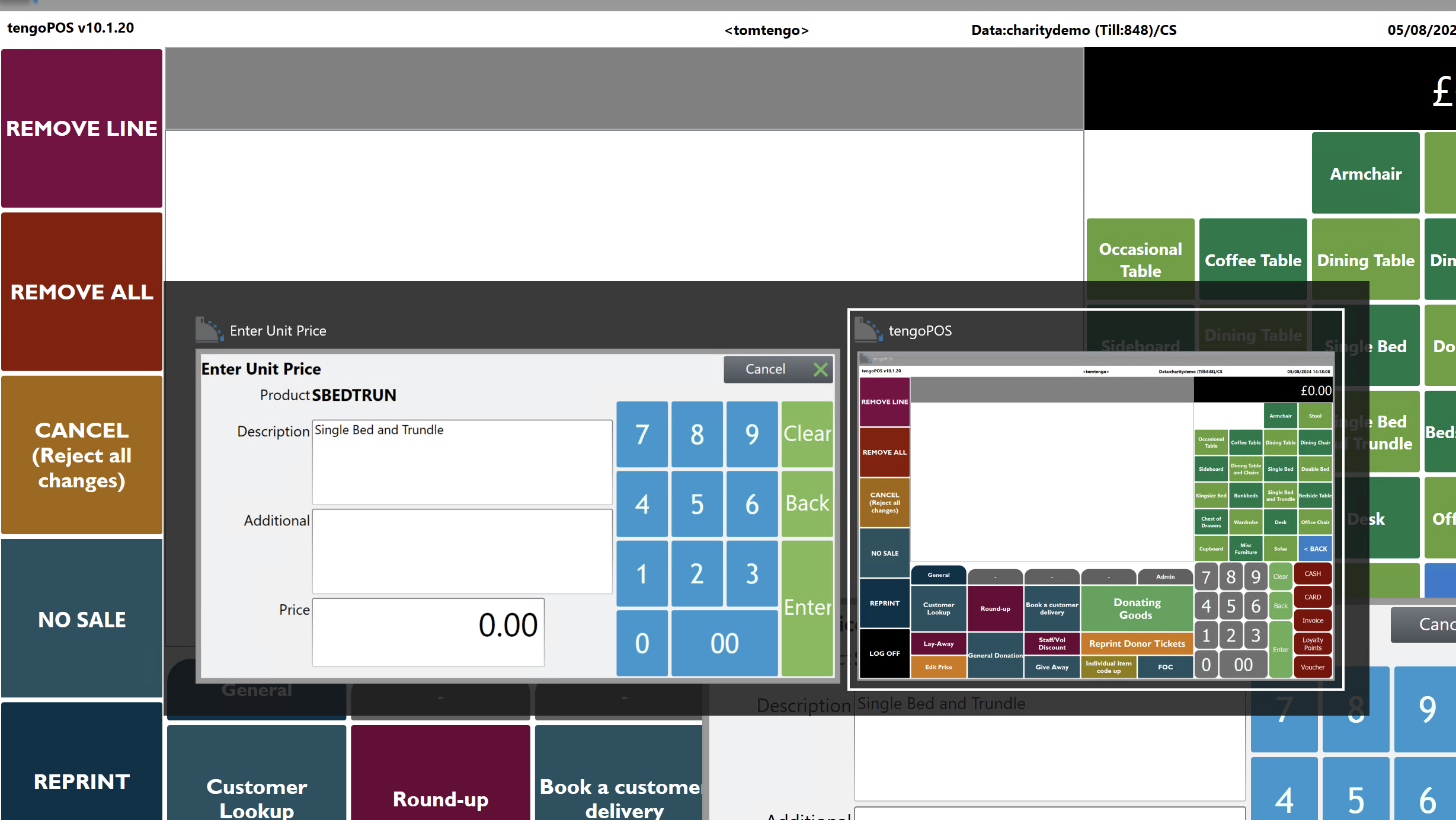
2. You have something resting on the keyboard. If something is pressing a key down on your keyboard, or if a kay is stuck ‘down’, this can prevent you from tapping things. If you want to rule this out, disconnect the keyboard altogether.
3. Touchscreen has failed. If it’s a tehcnical fault, and you’ve rebooted the machine and that’s failed to fix it, you’ll need to contact us to arrange a return under warranty if you are within the warranty period, or to buy a replacement if it’s outside of the warranty period.
PLEASE NOTE: If the touchscreen is working but it’s not pressing where you’re expecting, the touchscreen may need calibrating. Press the Windows key on your keyboard and type ‘Calibrate’, and click on the calibrate option that comes up. This then asks you to click on ‘X’ in the coreners of the screen to re-calibrate the touchscreen.
Related search terms: Can’t press buttons, touch not working, buttons broken, faulty buttons