Membership schemes and benefits setup is one of the more complex initial configurations – usually the person assigned to your on-boarding will do the initial setup for you, and then you can replicate/edit moving forward as required. An overview of membership functionality and some guidance are included in this article.
Configuring membership products/types/schemes
A recurring membership is a type, or ‘class’, of product. Add/edit the product as per the guide here, in the usual way, but set the class to ‘Membership’, which then activates the membership tab for specific configuration, shown below.
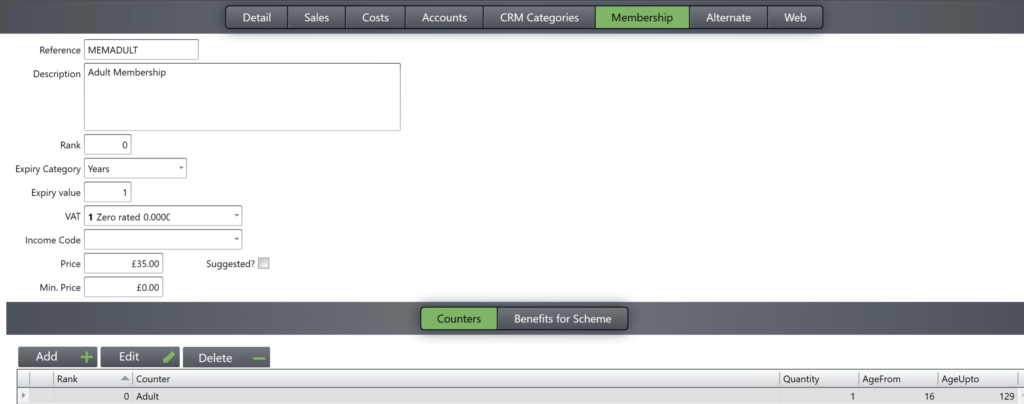
Most things provide defaults, which you can edit as required. You’ll need to specify the counters (number of different types of people the membership applies to, such as 1 adult for an adult membership. Counter guide here.).
Benefits (‘Benefits for Scheme’ tab) have almost infinite options and possiblities – common examples for an adult membership, would be 100% discount on adult admission, and say 10% off for the department of Cafe (so they get in for free, and get a membership discount on food and drink).
Selling memberships
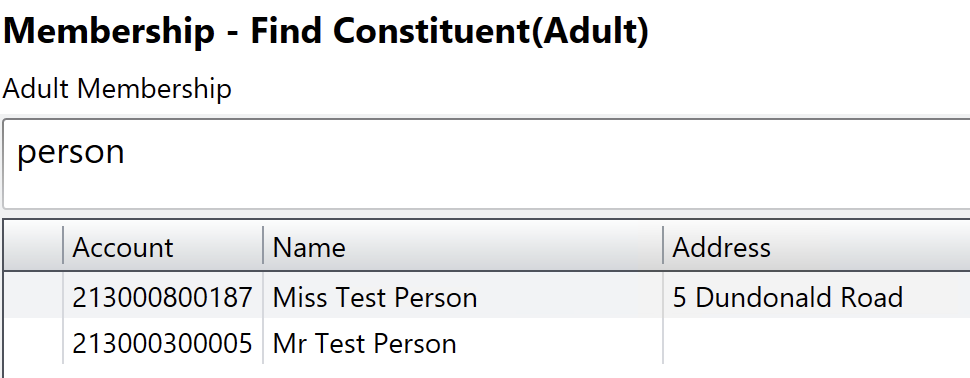
There are 3 ways to sell a membership. The membership can be added to a button in tengoPOS, in the usual way as per other products. It can also be purchased online through TripGiving or your own website from Tengo. There’s also a membership ‘finder’, the code for which is \\MSSA, which can also be added to a button. With this, the screen below pops up, so you can enter the number of people types/counters, and the second screen then shows you all applicable membership options to choose from.
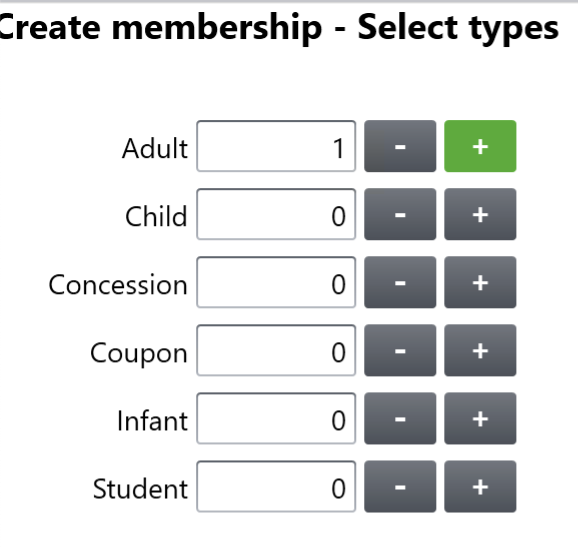
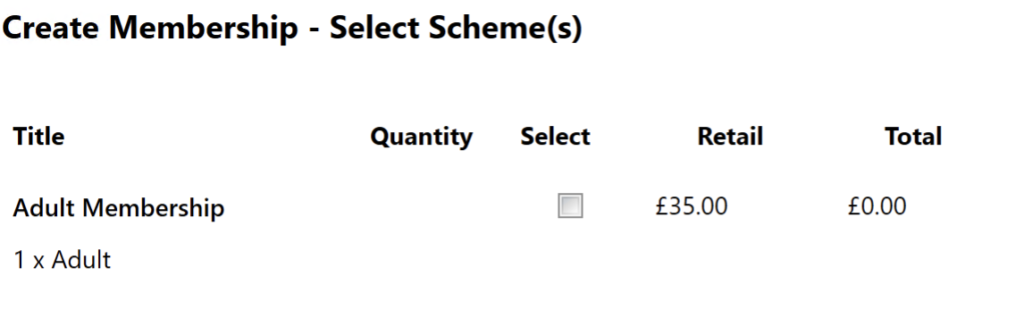
With online sales, the purchasor enters all of the information. In tengoPOS where you’re not in kiosk mode, the operator should capture the information, adding people (constituents) as approriate, on the screens that follow – they take you through everything required, requesting any information not already known that is required regards the member.
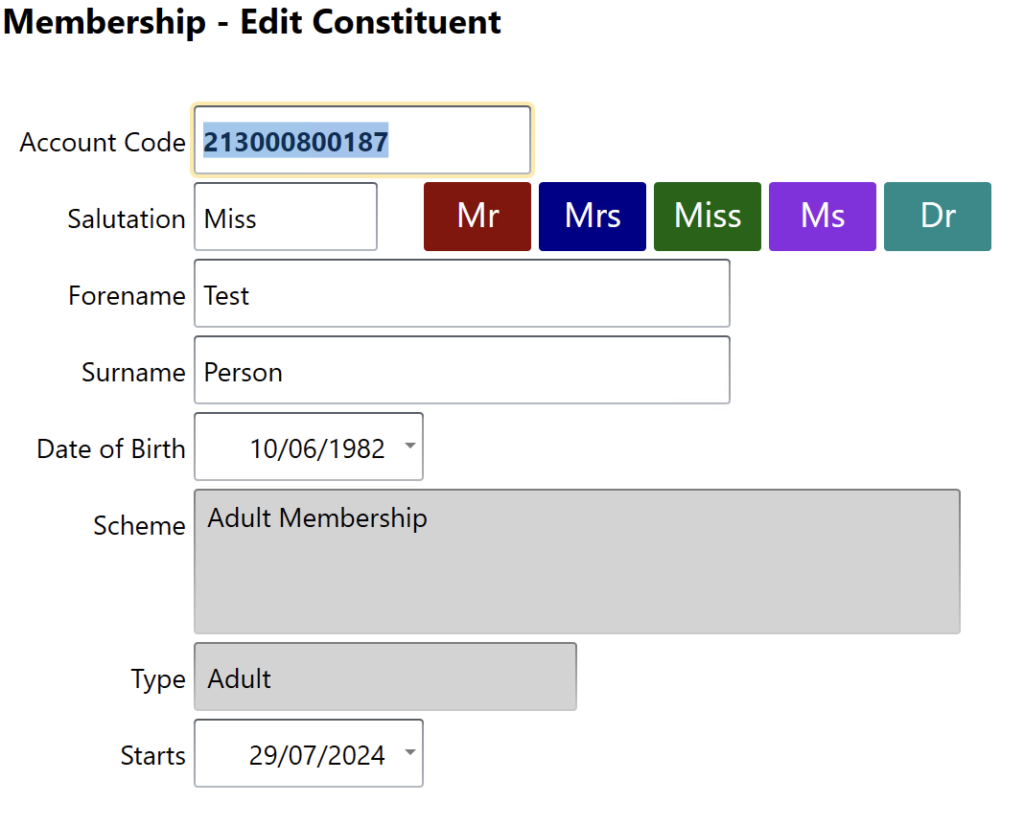
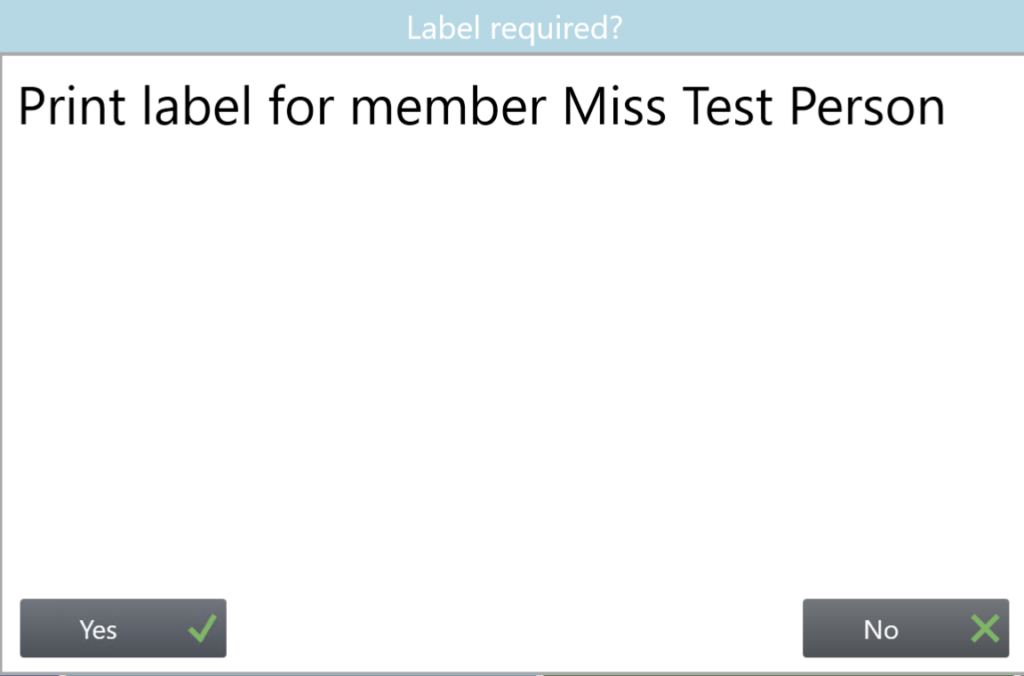
If you’re using pre-printed membership cards, in the ‘account code’ box shown above, you can enter / scan their card number to allocate the card to them. If not, you will be able to print a label to affix to a card, on the screen that pops up below.
Admitting members when they visit/applying benefits
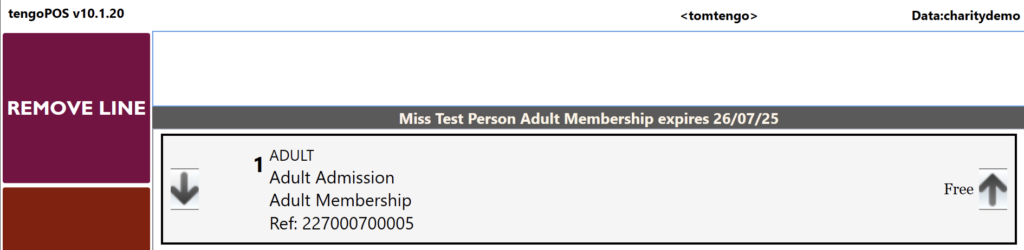
Wether using pre-printed or system generated cards, the way to identify a member and apply any benefits, is simply to scan their card. You can do this at any point in the transaction, and the following info bar in grey comes up to confirm their details if they have a valid membership. Also if you have any benefits set where products are auto-added (such as free admission), these will be added if relevant.
Renewing, editing, or cancelling memberships
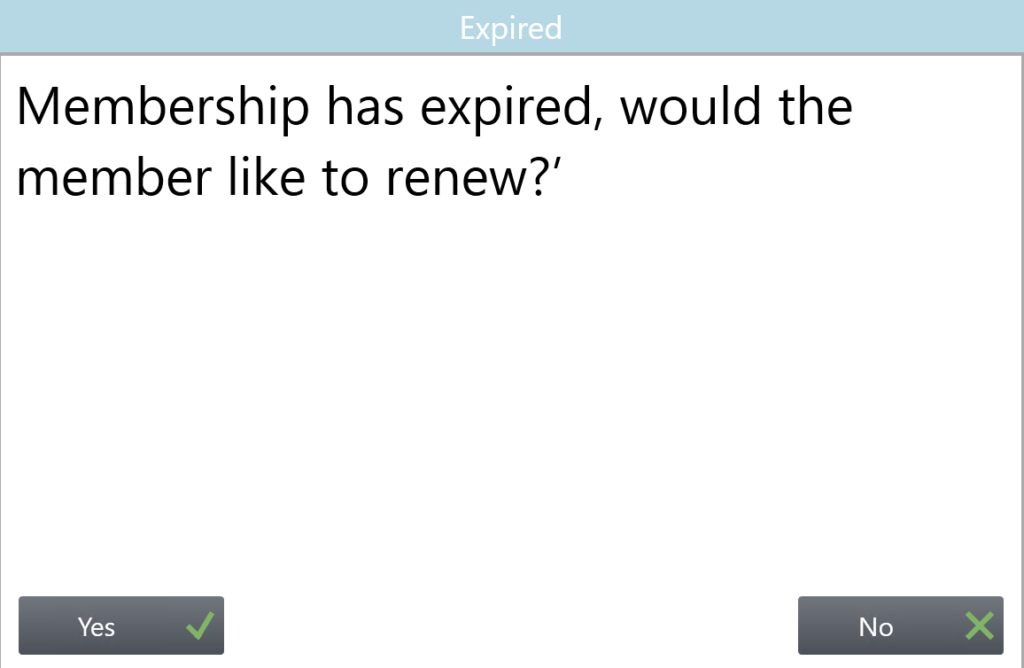
If you scan a member, and their membership has expired, you will be offered the chance to renew the membership there and then. The screen below will pop up if this is the case.
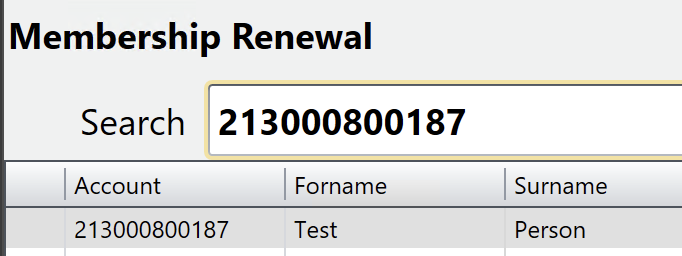
You can also go to membership renewal in tengoPOS directly, using a button if you have one or the action \\RENM – you can search using their card or details, on the screen below, and process the renewal once you’ve identified the correct member and membership.
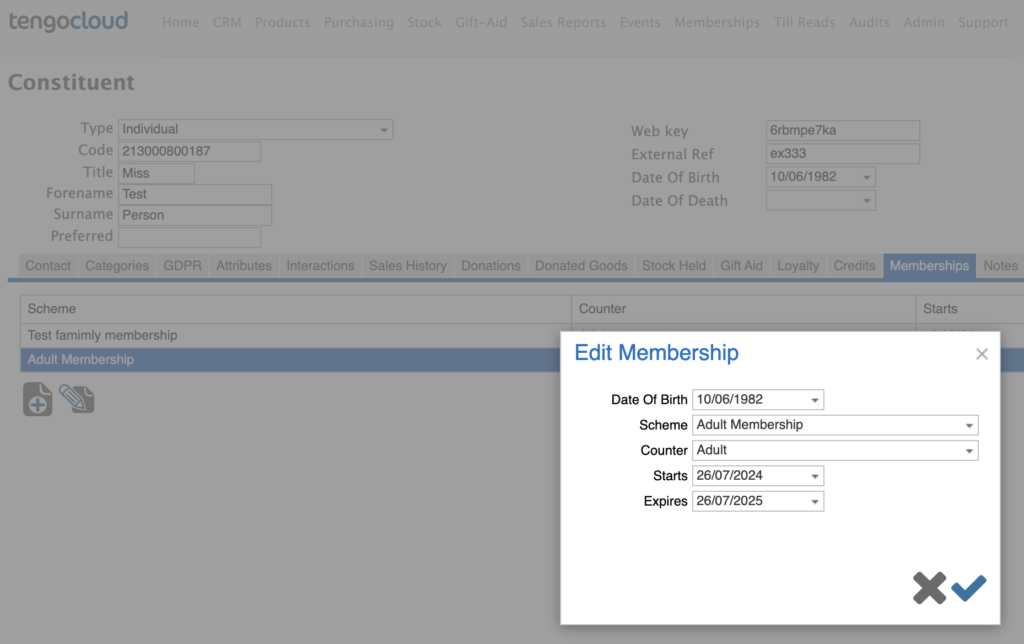
To edit member’s details, in tengoPOS you can do this through \\FCUS, locate the member, edit as required, and also in the CRM section of tengoCloud under constituents, again find and edit. You can also renew memberships there under the membership tab, as shown on tengoCloud below.